.svg)
- Check-in features on the mobile app require Location permissions
- Volunteers might check into the wrong Event if multiple geofences exist
- For the data to be accurate, they have to remember to check in and check out
- Etc.
To better accommodate situations where these disadvantages outweigh the advantages of manually checking in, Civic Champs has the Automatic Check-In feature in the Group Settings tab:
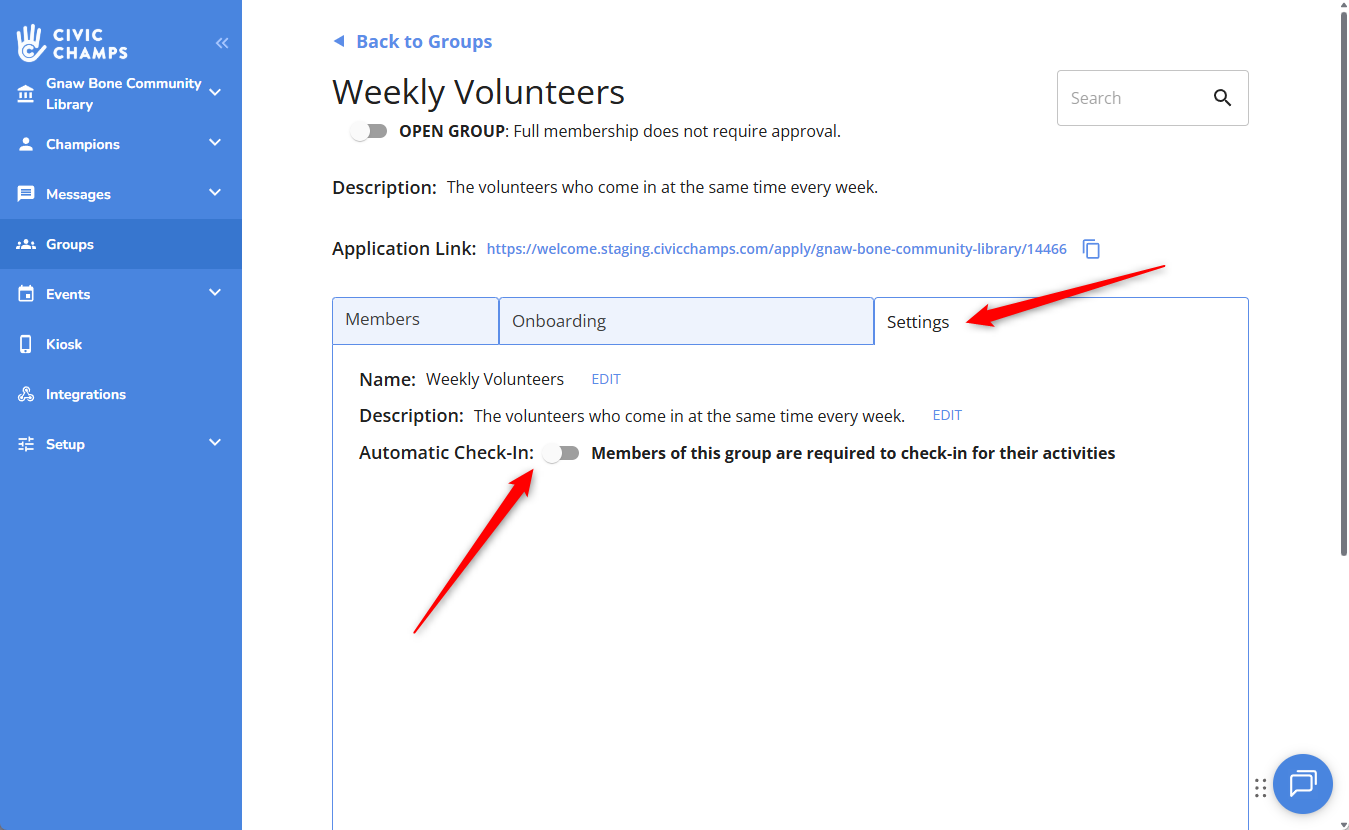
By default, this setting is disabled for all of your Groups, which means you volunteers will need to manually generate their volunteering hours, either through checking themselves in via the mobile app, a kiosk, admin mobile check-in, or logging additional hours outside of an Event.
Enabling this setting makes it so all members of the Group automatically generate hours based on their Registrations: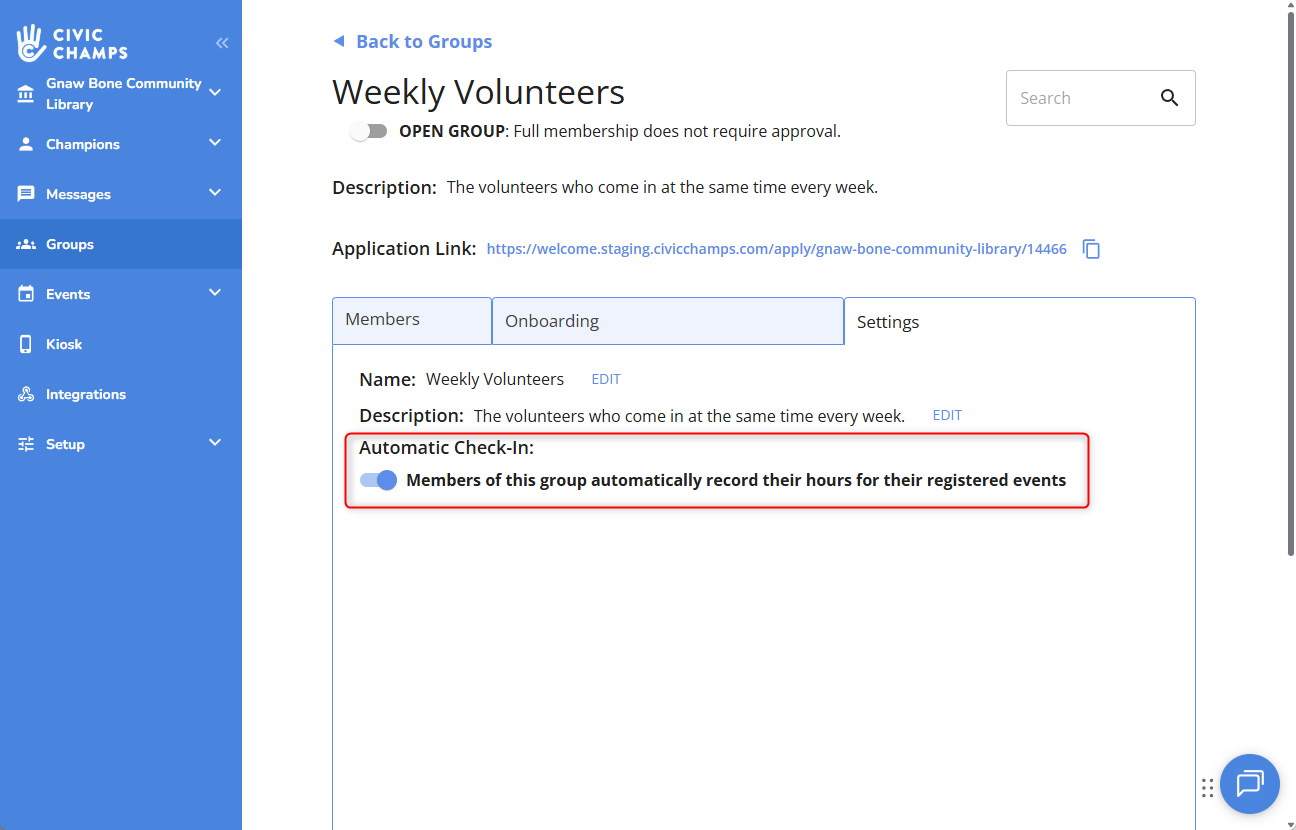
How this behaves more specifically is that, the moment a Calendar Event begins, Civic Champs checks all of the registrants. For everybody who has a Registration on record for that Event, the system just automatically throws their hours into the Activity Log, as if they came in during the Event Start Time, left during Event End Time, and did the Role for which they were registered.
For example: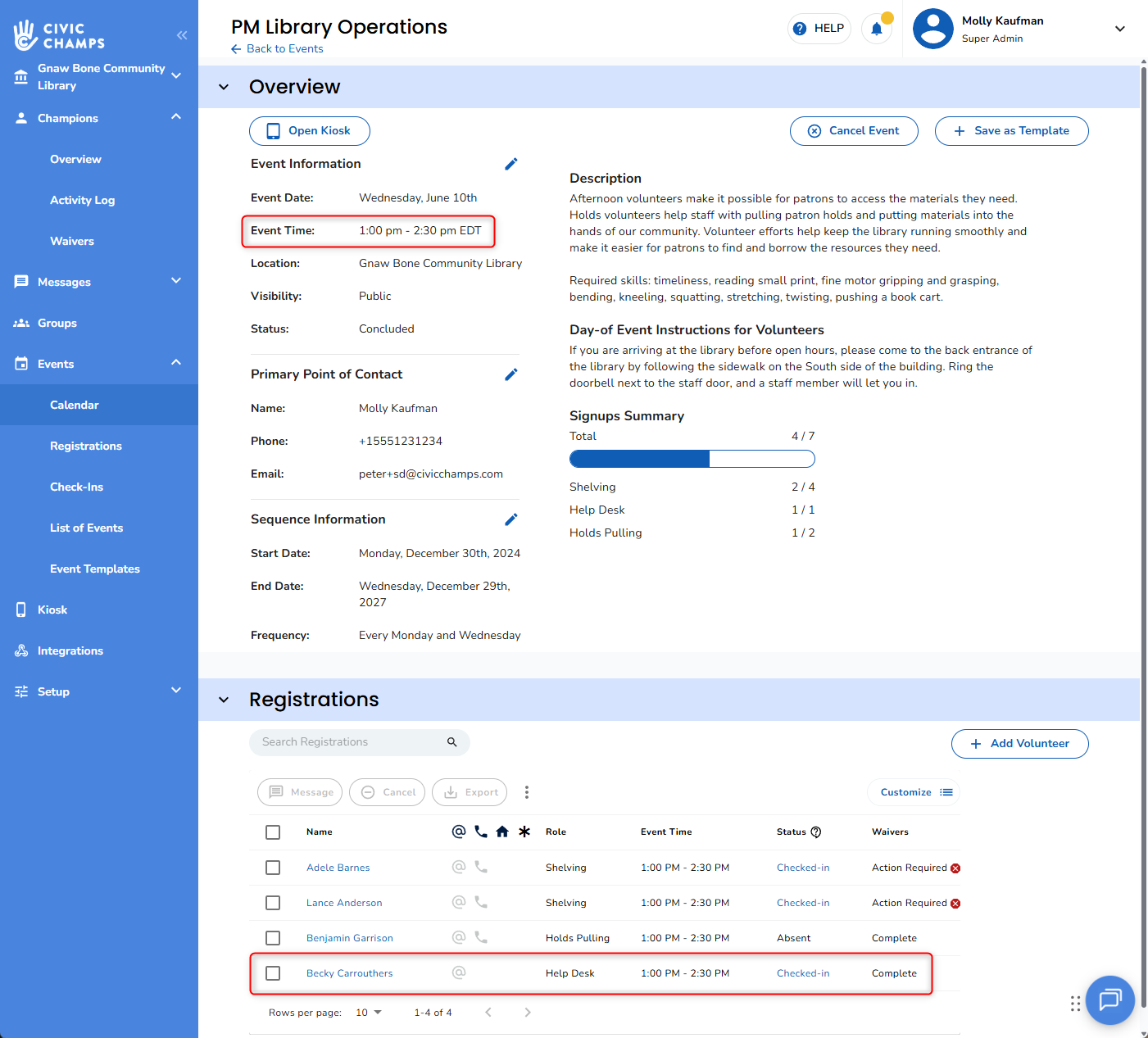
Because Becky Carrouthers is a member of a Group that has Automatic Check-In enabled, and she was registered for this Event, she was automatically marked as Checked-In, and had 90 minutes of Help Desk hours added to the system on her behalf: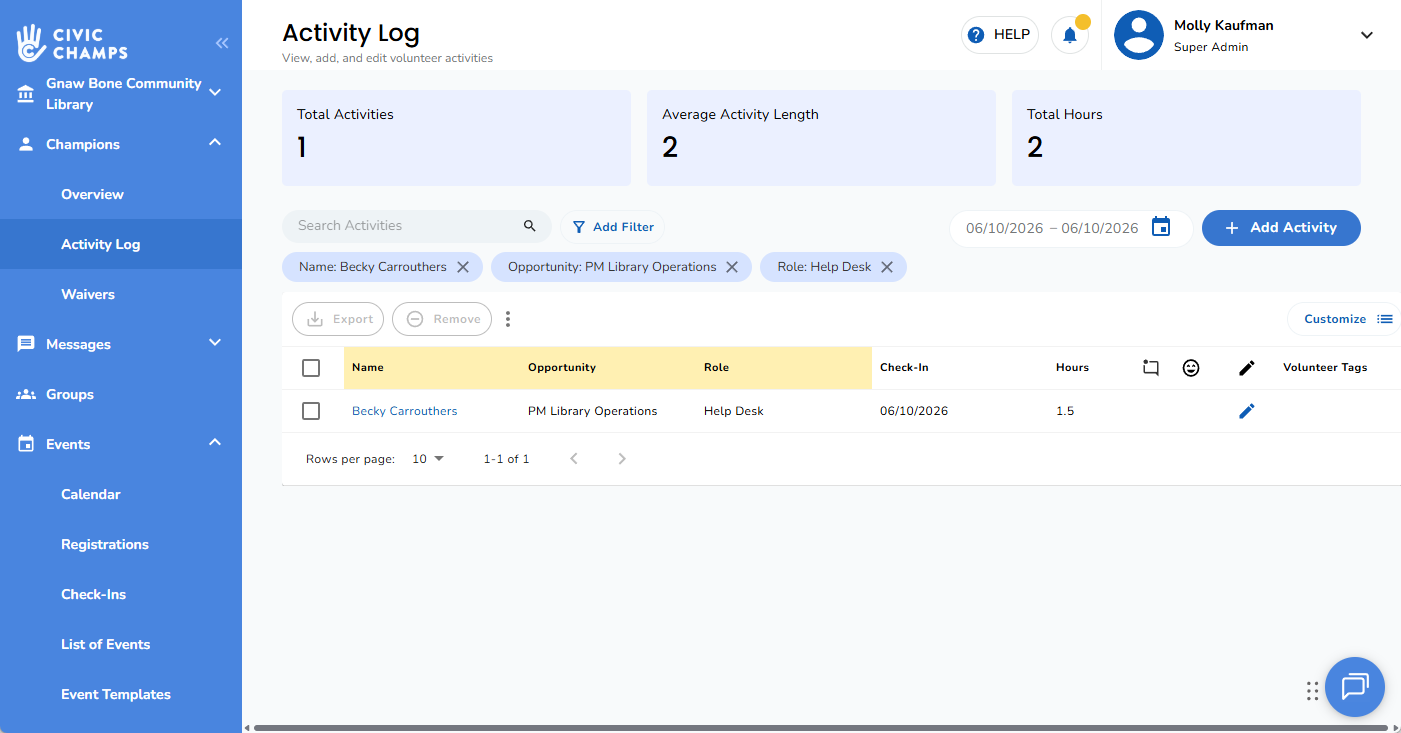
One thing to note, is that this step occurs independently of any action the volunteer takes themselves. This means, if a volunteer who is a member of an Automatic Check-In Group also checks into an Event, a duplicate Activity will be generated -- one from the Automatic Check-In feature, and the other from their manual check-in.
If this feature generates Activities that wind up being inaccurate (for example, perhaps Becky didn't show up after all), simply deleting the resulting Activity will correct the record, adjusting her Registration status back to Absent.
Because Automatic Check-In is a very all-or-nothing feature, in that it always generates Activities out of Registrations, without any exceptions, it is recommended to only be used in cases where the volunteers understand they no longer need to manually log their hours in any capacity. The core demographic of this feature is for volunteers who are extremely reliable in terms of coming in when they're scheduled, but, for one of the many reasons mentioned earlier, are potentially less reliable when it comes to the manual check-in/check-out part of getting their hours into the system.